
Post created based on AirWatch console version 9.1.1.
Depending on your business or security requirement, you may want to restrict the SSID your mobile device can connect to via Wi-Fi. This can be easily accomplished with a custom profile in VMware AirWatch console.
Here is the complete list of steps to take:
- Log onto AirWatch console
- Under DEVICES -> Profiles & Resources -> Profiles, click ADD -> Add Profile
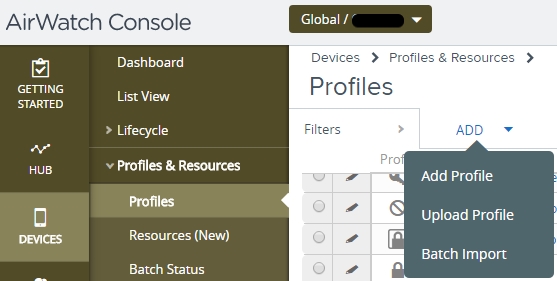
- Select the applicable platform. For this example, we select iOS.

- Fill out both the General and Wi-Fi sections accordingly.
- Scroll down to Custom Settings and click on the Configure button
- Copy and paste the text below. Then click Save & Publish
<dict>
<key>PayloadDescription</key>
<string>Configures restrictions</string>
<key>PayloadDisplayName</key>
<string>Restrictions</string>
<key>PayloadIdentifier</key>
<string>com.apple.applicationaccess.701938A5-AD32-43B6-A045-2AC81C71XXXX</string>
<key>PayloadType</key>
<string>com.apple.applicationaccess</string>
<key>PayloadUUID</key>
<string>1C2BDF9D-8C8C-4248-B9E1-4D17EAD8XXXX</string>
<key>PayloadVersion</key>
<integer>1</integer>
<key>allowDictation</key>
<false />
</dict>

Once this takes effect, the user will see the below when attempting to connect to different SSID other than the one configured.

I hope you find this post useful!
 Thomas Cheng
[…] 9.1, I could not easily lock down WiFi connectivity to specific SSID(s) without the use of the custom profile. With the newer version of the web console, we no longer need to rely on a custom profile which is […]
LikeLike